Build your first story in Blueprints
From a blank Blueprint project to a playable, saveable, bilingual dialogue — install, sync, one actor, your own screen, commands, character data, packaging.
All documentation — Start here
Start here
Concepts
Authoring for a build
Playing a story
The generated assets and code
The plugin and sync
On this page
- 1. Install the plugin
- 2. Enable it
- 3. Connect and sync
- 4. Place the story in a level
- 5. Play
- 6. Make the screen yours
- 7. Commands
- 8. Character data and node fields
- 9. When the writer adds a field
- 10. When the writer removes a field
- 11. Save, load and language
- 12. When something looks wrong
- 13. Learn from the sample
- 14. Package
- Next
This page takes a Blank Blueprint project to a dialogue game that plays, saves, loads and switches language, with a screen of your own and commands your game answers. Nothing on it needs C++, a file edited outside the editor, or a copy of the sample. Visual Studio is needed once, at the very end, to package — see step 14.
You need a TaleShard project with at least one board. The example uses a Crew entity
definition with a number field patience, a select field role and an entity field companion;
an instant playSound command; an awaited fade command with a seconds parameter; and an
Italian translation.
1. Install the plugin
Download the release zip for your engine version from the plugin’s GitHub Releases page and unzip
it into your project’s Plugins/ folder (create the folder if it does not exist), so that
Plugins/TaleShard/TaleShard.uplugin exists. The zip carries the plugin already compiled, and the
sync tool inside it, so the editor opens the project without asking to build anything. See
requirements for the engine version.
2. Enable it
The plugin is off by default. Open the project, then Edit > Plugins, search for TaleShard, tick it, and restart the editor when it asks. A TaleShard menu appears in the main menu bar, and a TaleShard button on the level editor’s toolbar.
3. Connect and sync
In the TaleShard web app, open Project Settings > Export and generate an API key. In Unreal, open TaleShard > Sync Window, paste the key into Enter or replace key, and press Sync Now. The key is stored on this machine only, never in the project. From then on, the toolbar’s TaleShard button syncs in one click, and its tooltip says how the last sync went.
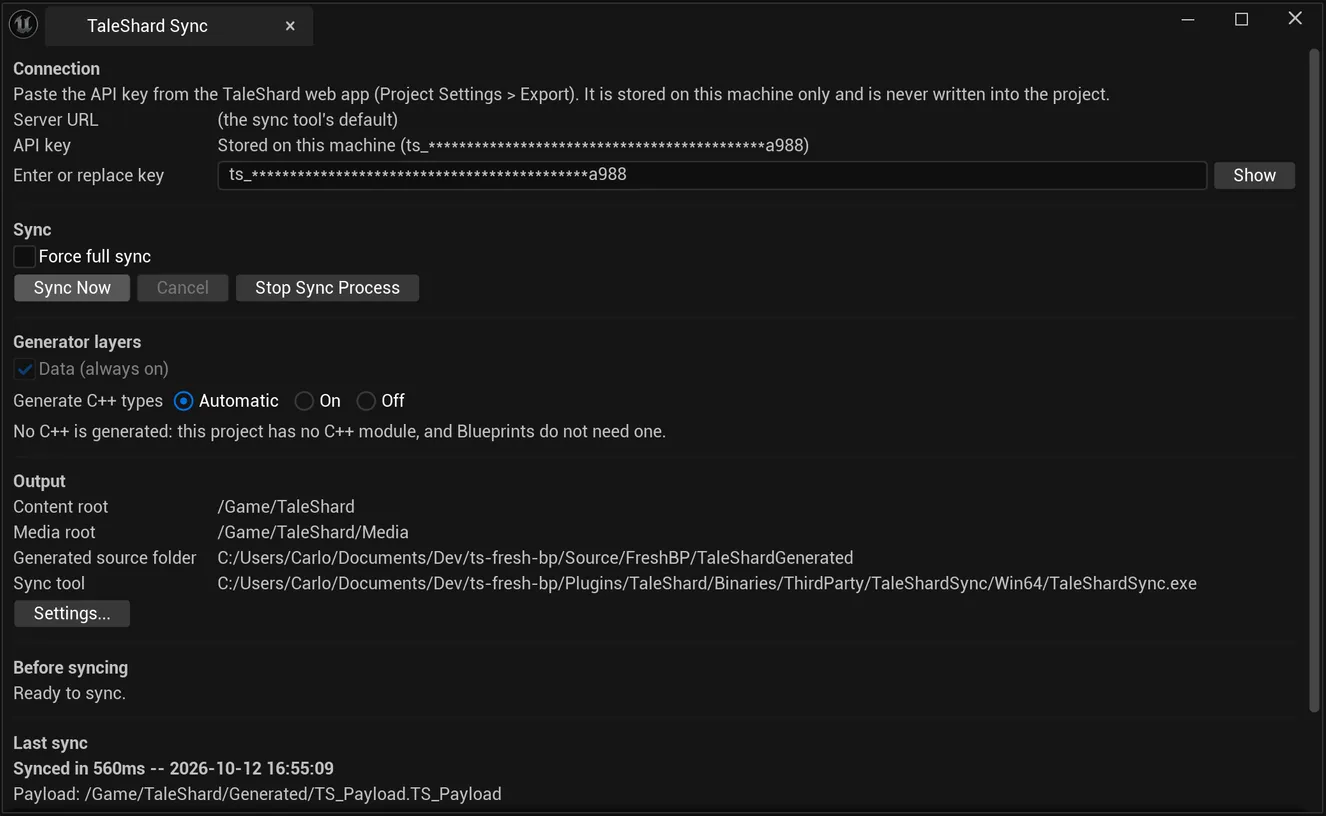
Leave Generate C++ types on Automatic. In a project with no C++ it writes no C++ and says nothing about it: Blueprints do not need any. A project that has C++ of its own gets typed C++ for that code too — see the typed C++ layer.
After the sync your Content holds TaleShard/Generated/ — the story (TS_Payload), the indexes
of your characters, commands and media — and the imported pictures and sounds under
TaleShard/Media.
4. Place the story in a level
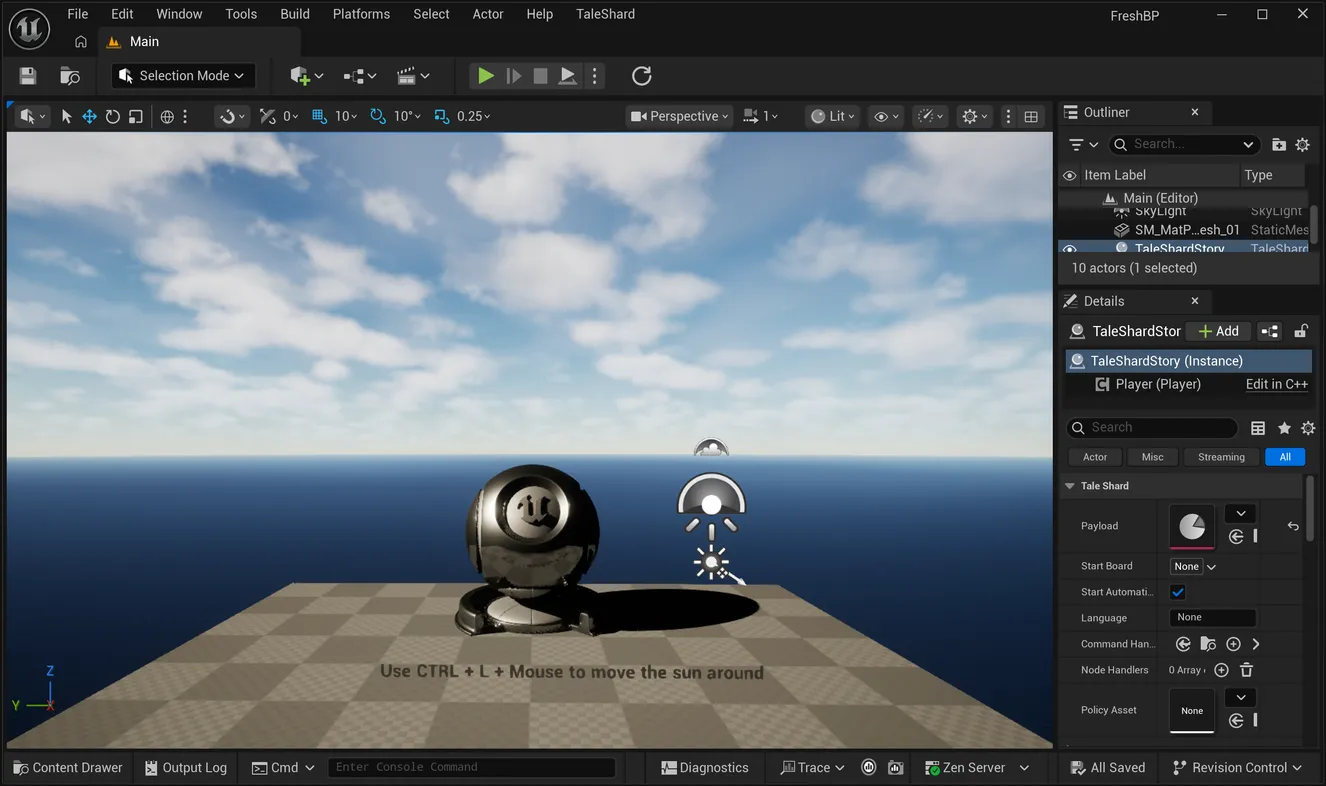
Open the Place Actors panel, search for TaleShard Story, and drag it into your level.
Payload and Media Index are already filled in, because the project has only one of each.
To begin somewhere other than the author’s start, pick a board in Start Board; the picker lists
the project’s boards under TaleShard.Board.
| Setting | What it does |
|---|---|
| Payload | the story to play |
| Start Board | where to begin, or empty for the author’s own start. A project whose author set no start needs one picked here, or Play is refused with the reason |
| Start Automatically | play as soon as the level starts. Off, call Play on Get Player yourself |
| Language | a dropdown of the project’s languages, or None to follow the game’s own language — see step 11 |
| Command Handler Class | where your commands are answered — step 7 |
| Node Handlers | one handler class per node type your game reacts to — step 8 |
| Policy Asset | what the story shows the player; empty for the defaults |
| Dialogue Screen Class | the screen the story is drawn on — step 6 |
| Media Index | where portraits and voiced lines are found |
| Take Input | show the mouse cursor and let the screen take keyboard and gamepad input while the story plays. When the actor ends play, the cursor is put back as it was and input returns to the game |
The rest of this page calls nodes on this actor. To reach it from the Level Blueprint, select the actor in the Outliner, open the Level Blueprint (Blueprints > Open Level Blueprint), right-click and choose Create a Reference to TaleShard Story. From any other Blueprint, Get Actor Of Class with TaleShard Story finds it.
5. Play
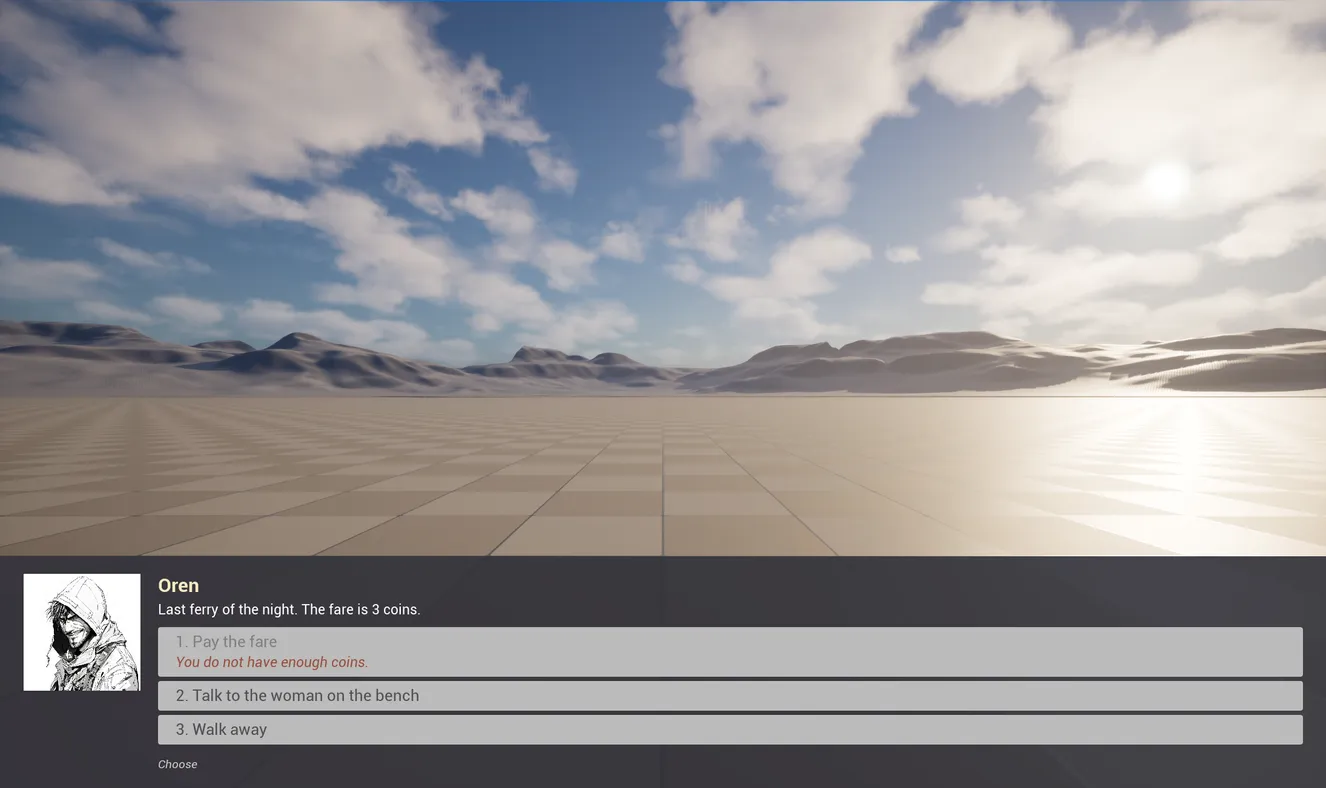
Press Play. The story plays on the plugin’s dialogue screen.
| The player | Does |
|---|---|
| clicks the screen, or presses Space, Enter or the gamepad’s bottom face button | finishes the line when it is still being typed, otherwise continues |
| presses 1 to 9 | takes the choice with that number |
| clicks a choice | takes it. A choice that cannot be taken is drawn faded, with the reason it is locked, and cannot be clicked |
| holds Left Ctrl or the gamepad’s right shoulder | fast-forwards up to the next choice |
| presses H or the gamepad’s special-left button | shows or hides the history of what was said and chosen |
The speaker’s name and portrait are drawn, and a line that has a voice-over recording is spoken. If nothing draws, the status line says why, and the Output Log carries the same message.
6. Make the screen yours
Select the TaleShard Story actor. In its Details panel, under Screen, press Create New on
the Dialogue Screen Class row; in a narrow Details panel, widen it to see the class picker
beside the button. A Widget Blueprint, WBP_DialogueScreen, is made in
/Game/TaleShard/UI, laid out like the screen in use; the actor’s Dialogue Screen Class is pointed at
it, and it opens in the widget designer.
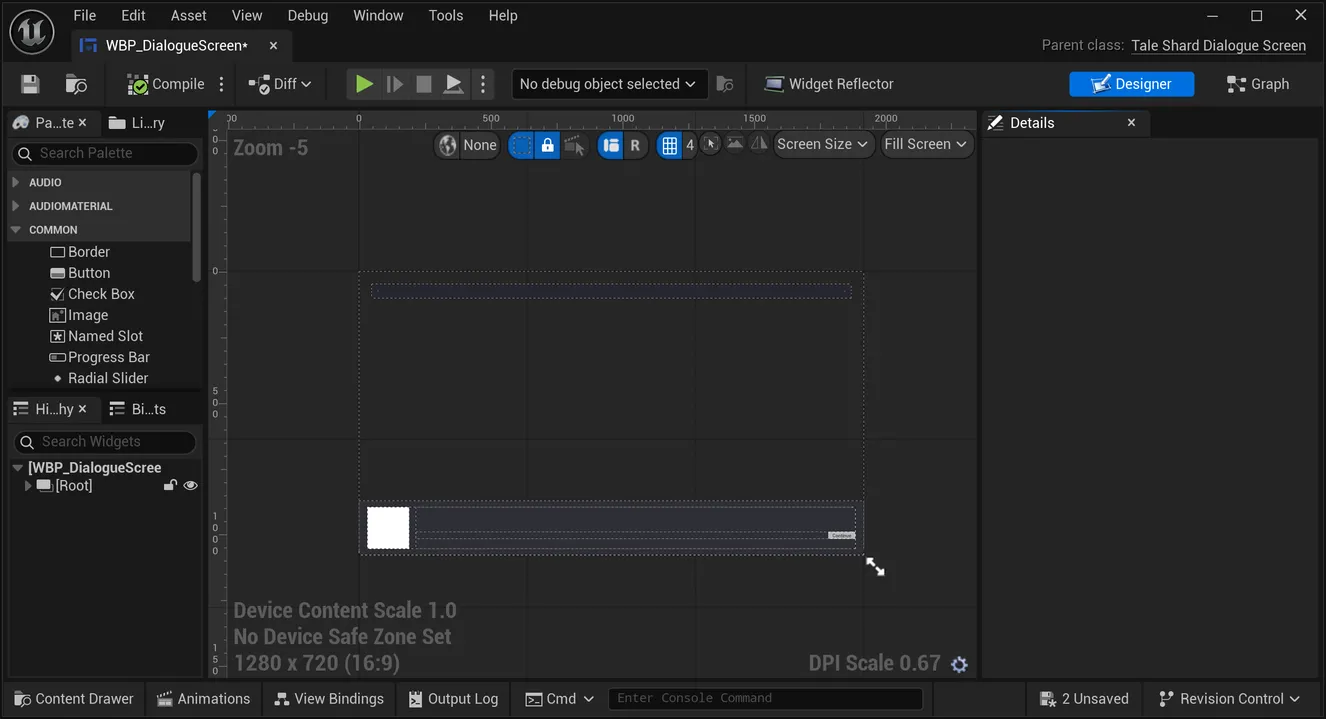
Move, restyle or replace its widgets. What the screen does — the typewriter, the keys, the choice buttons, the history, the voices — belongs to the plugin’s dialogue screen class it derives, so a plugin update reaches your screen without touching your layout. Keep these names:
| Widget | |
|---|---|
Prose | required — a Rich Text Block, the line itself |
Status | required — a Text Block: Continue, Choose, The End |
Choices | required — any panel; the choice buttons are put in it |
Speaker, Continue, Portrait, History, HistoryFrame | optional — leave one out and the screen does without it |
Every comfort is a setting on the screen, under TaleShard > Comforts in its Class Defaults:
Typewriter and its Characters Per Second, Auto Advance and its delay, Fast Forward
and its keys, the Continue Keys, Number Keys Choose, Keep History and its keys, Show
Portrait and Play Voices. The choice buttons are drawn with Choice Button Class: a widget
holding a Button named Button and a Text Block named Label, and optionally a Text Block named
Reason for why a choice is locked.
To draw everything yourself instead, set Dialogue Screen Class to None and bind the player’s events — drawing a line of text.
7. Commands
A command is the story asking your game to do something. Make a Blueprint Class whose parent is TaleShard Command Handler, and set it as Command Handler Class on the TaleShard Story actor.
In its Event Graph, right-click and open TaleShard > Commands: every command the project
declares is listed. Pick TaleShard Command: Fade, or type fade or command to find it. You get one red event, with a pin
per argument, typed — seconds is a number — and, because fade is awaited, a Done pin.
The story waits until you call a Complete function on Done: Complete With Nothing once the fade
has finished, or Fail with a reason.

An instant command such as Play Sound has no Done pin, and the story carries on as soon as the event runs. Place one event per command; two for the same command stop the Blueprint compiling. A command with no event of its own reaches the handler’s On Command event, with its tag and its arguments. More in implementing commands.
8. Character data and node fields
Right-click in any Blueprint and open TaleShard > Entities > Crew: every field of the
definition is there. Get Patience gives Get Crew Patience, a node whose output pin is the
field’s own type — a float for patience, a gameplay tag for the select role, an entity for
companion (which another Get Entity Field node reads on), a media reference for a picture.
The node reads from an Entity pin. Two ways to get one:
- A character you name: Get Player on the TaleShard Story actor, Get Session, then
Get Entity or Find Entity with its tag —
TaleShard.Entity.oren— from the picker. The two read the same entity: Get Entity has a Found and a Not Found exec pin, Find Entity is a pure node answering true or false. In a command handler, the handler’s own Get Session gives the session directly. - Whoever is on stage: from a step’s Get Cast, Find Entity (Actor) on the session.

The same node shape reads the rest of the project:
| Node | Menu | Reads |
|---|---|---|
| Get Entity Field | TaleShard > Entities > definition | an entity’s field |
| Get Node Field | TaleShard > Node Fields > node type | a node’s own field, from a step on it — in a node handler, the step it is handed. Listed as Get field (Node Field) |
| Get Story Variable, Set Story Variable | TaleShard > Variables | a story variable, through the session: Get Player, then Get Session. Listed as Get variable (Story Variable) and Set variable (Story Variable) |
Get Story Variable picks the variable from a list and gives its own type, a float for a number. The player’s Get Variable reads the same variable by its tag and gives a story value, for a graph that chooses the variable at run time.
A node type with logic of its own — a timed decision, a shop — gets a node handler: a Blueprint whose parent is TaleShard Node Handler, with Node Type picked from the tag tree, added to the actor’s Node Handlers. Its On Node Played event hands you the step, and Get Node Field reads the node’s fields from it — node handlers.
9. When the writer adds a field
The writer adds a field to Crew in the app. Press the toolbar’s TaleShard button. The field is
in TaleShard > Entities > Crew at once. Nothing compiles, and nothing needs to: the nodes read
the synced data directly.
A content change — a line, a value, a translation — is the same: sync, press Play.
10. When the writer removes a field
The writer deletes patience, and a Blueprint of yours reads it. Sync. The sync window’s Last
sync list names each Blueprint that uses something the sync removed, with an Open button —
“BP_Mood: Get Crew Patience reads Crew.Patience, which the last TaleShard sync no longer has.” —
and those Blueprints are compiled, so the node shows the error where it stands.
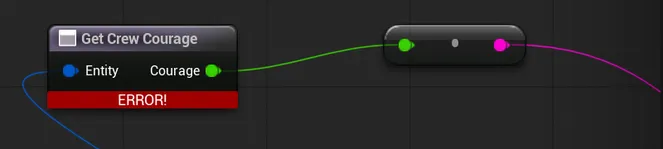
A node wired to nothing shows the error too: a TaleShard node is checked against the project before Unreal leaves unused nodes out of the compile.
Delete the node, or restore the field in the app and sync again. A field whose type changed is updated in place: its pin takes the new type, and any wire that no longer fits shows the usual Blueprint error. A field whose code the writer renamed reads as removed: place the node again, under its new name.
11. Save, load and language
Both are nodes on the TaleShard Story actor itself:
- Save Story to Slot with a slot name and a user index (0 for a single-player game) writes the playthrough to a save slot.
- Load Story from Slot with the same name and index puts it back. It is refused, with the reason, when the slot is empty or holds another project’s story.
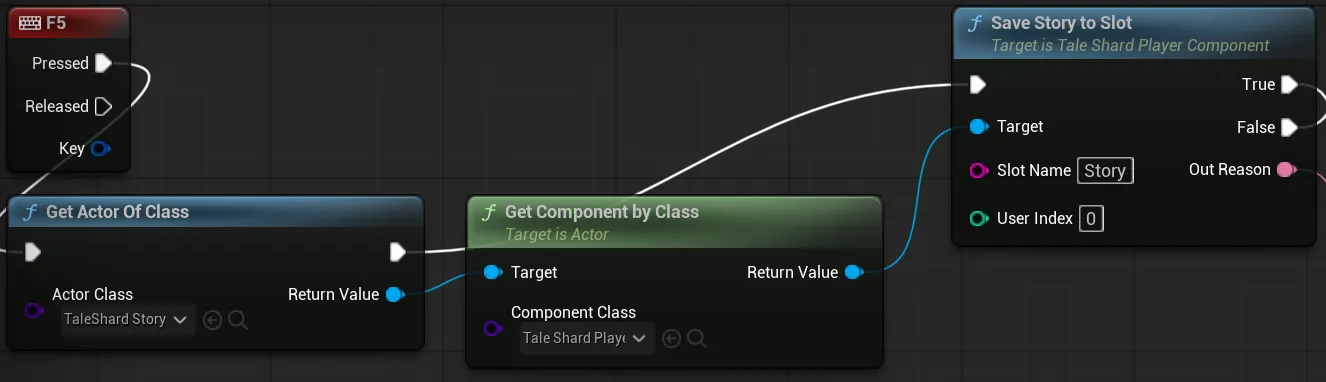
Save is refused while the story waits on a command and before the first line is on screen — the Reason pin says which. More in saving a playthrough.
The story follows the game’s language. With Language left empty, it plays in the game’s current language when the project has a translation for it, otherwise in its master language, and it switches when the game’s language changes. To pick one by hand, call Set Language on Get Player; its language pin is a dropdown of the project’s languages. Get Languages lists them, with a label to draw, for a picker of your own. A load puts back the language the save was made in.
When the story ends, Get Player’s On Ended event fires with how it ended; Reached The End is true when the story ran to the end of its path, and false when it was stopped or could not carry on. Bind it in Event BeginPlay of the Level Blueprint, or select the actor, pick its Player component in the Details panel and press + beside On Ended. More in starting a session.
12. When something looks wrong
While the game plays in the editor, open TaleShard > Story Debugger. It shows where the story is, every variable — which you can change — and what it has played so far, newest first. Jump plays from any node, and Open in TaleShard opens the node in the app, in your browser. See the Story Debugger.
13. Learn from the sample
TaleShard > Open Sample opens the plugin’s sample level: a TaleShard Story actor and a command handler that prints every command it receives, playing your own synced story. It lives in the plugin and is for looking at and playing; your own levels need only the TaleShard Story actor you already placed.
14. Package
Packaging needs Visual Studio with the C++ game development workload, as it does for any plugin with code in a Blueprint project. You do not need to add a C++ class: the project switching the plugin on is what makes Unreal build a game that includes it — see requirements.
Set your level as the Game Default Map (Project Settings > Maps & Modes) and package as
usual (Platforms > Windows > Package Project). The story, the pictures and the gameplay tags the
sync registered (Config/Tags/TaleShardGenerated.ini) ship with it. If your project limits which
config files are staged, allow that one. The default dialogue screen ships too: the plugin’s own
Config/Game.ini adds its /TaleShard/Widgets folder to Directories to Always Cook, because
no level names a screen left at its default. Nothing is written to your project for it. A screen of
your own made with Create New lives in your /Game folder and is cooked because the actor names
it.
Next
Reading a step for everything a step carries, implementing commands for arguments and results, node handlers, and saving.