The Story Debugger
The editor tab that shows the story playing in the editor — where it is, its variables, what it played — and jumps to any node or opens it in TaleShard.
All documentation — The plugin and sync
Start here
Concepts
Authoring for a build
Playing a story
The generated assets and code
The plugin and sync
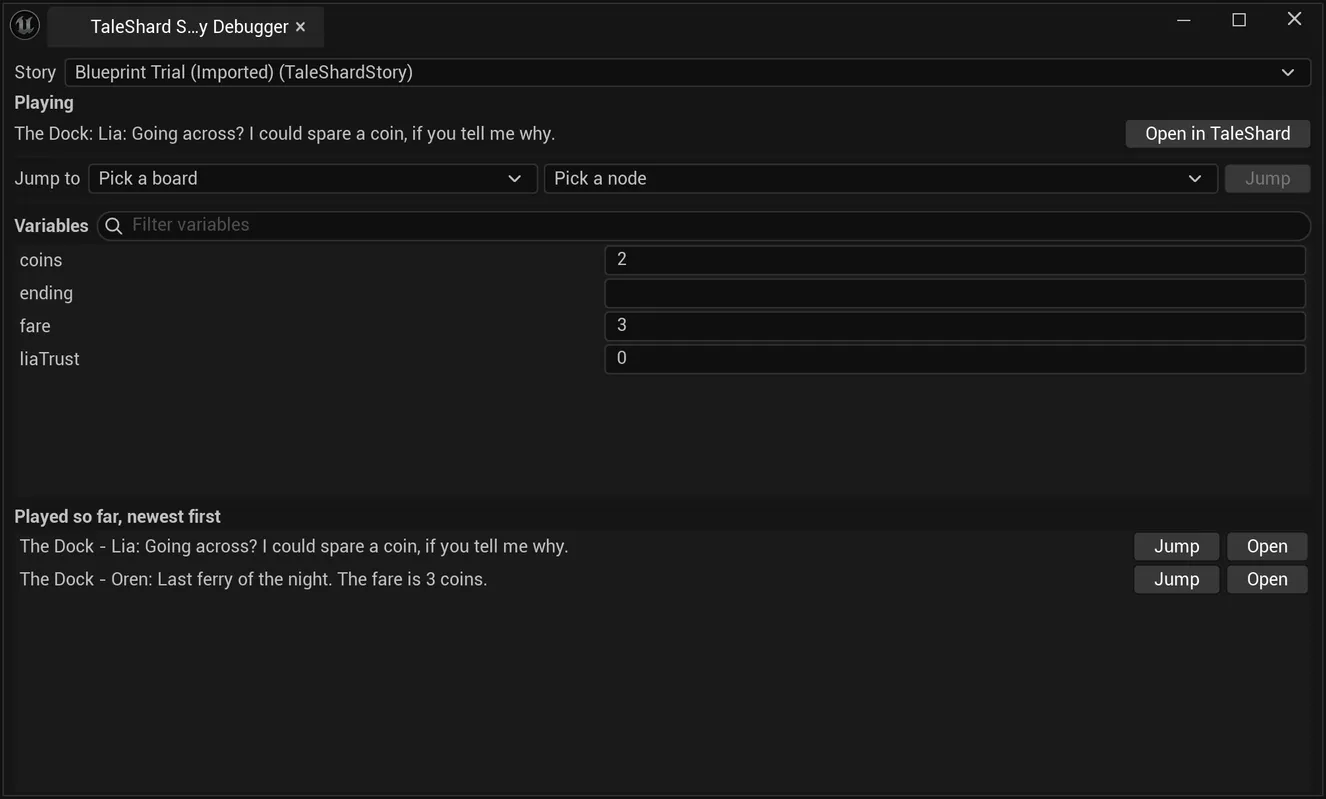
The Story Debugger is an editor tab that watches the story the game is playing in the editor,
and steers it. Open it from TaleShard > Story Debugger, or type TaleShard.StoryDebugger in
the console. It can stay open between plays: it fills in when a game starts playing a story in the
editor, and says so while none is.
It is an editor tool. Nothing of it reaches a packaged game.
Which story
Story lists every story the game is playing, by project name and by the actor that plays it, so a level with two TaleShard Story actors shows both. The first is picked for you.
Under it, the status:
| Status | Means |
|---|---|
| Playing | a line is on screen |
| Waiting for the player to choose | the line on screen offers choices |
| Waiting for the game to finish the command code | the story called an awaited command and your game has not completed it yet |
| The story has ended | the playthrough is over |
| Not started | nothing has been played yet |
Then the current board and line — the speaker and the first line of the text — and Open in TaleShard.
Open in TaleShard
Open in TaleShard opens the project in the TaleShard app, in your browser, on the board and the
node that is on screen. The address is <App URL>/open/<project id>?board=<board id>&node=<node id>.
The app it opens is App URL in Project Settings > Plugins > TaleShard. Left empty, it is
https://app.taleshard.com; a team that runs its own TaleShard sets its own address there.
Jump to a node
Pick a board under Jump to, then a node on it — each listed by its type and the first line of its text — or The board’s own start, and press Jump. The story plays from there at once.
A jump is a Play from that node: every variable keeps its current value, while the history, the choices taken and the lines said start again, as they do for Play. That is what makes it useful for testing a branch: set the variables the branch needs, then jump to it.
Variables
Every story variable, with its current value. Filter variables narrows the list by name.
To change one, type a new value and press Enter:
| The variable holds | Type |
|---|---|
| a number | a number |
| true or false | true, false, 1 or 0, in any case |
| a list | its members, separated by commas |
| text | the text, as is |
A value that does not fit is refused, and the reason is shown under the list. The change is read from the next line on: the line already on screen keeps what it was drawn with. To see it drawn with the new value, Jump to it.
Played so far
The lines the story has played, newest first: the speaker and the first line of each, or the node’s type for a step with no text. Each has Jump, which plays from that node again with the variables as they are now, and Open, which opens it in the TaleShard app.
Next
What a sync writes, or diagnostics for what the story reports while it plays.