Build a node type
Author a node type end to end — fields, a repeater that makes real exits, an appearance, and a node of it on a board. About twenty minutes.
All documentation — The node builder
Boards and the canvas
The node builder
Modelling the world
Variables, logic and commands
Voice and audio
AI
Working together
Project settings
On this page
By the end of this you will have authored a node type of your own and put one on a board. We will build a Skill check — a node that states a challenge, and offers one exit per outcome.
You need a project with a board in it. If you have not made one, do your first board first.
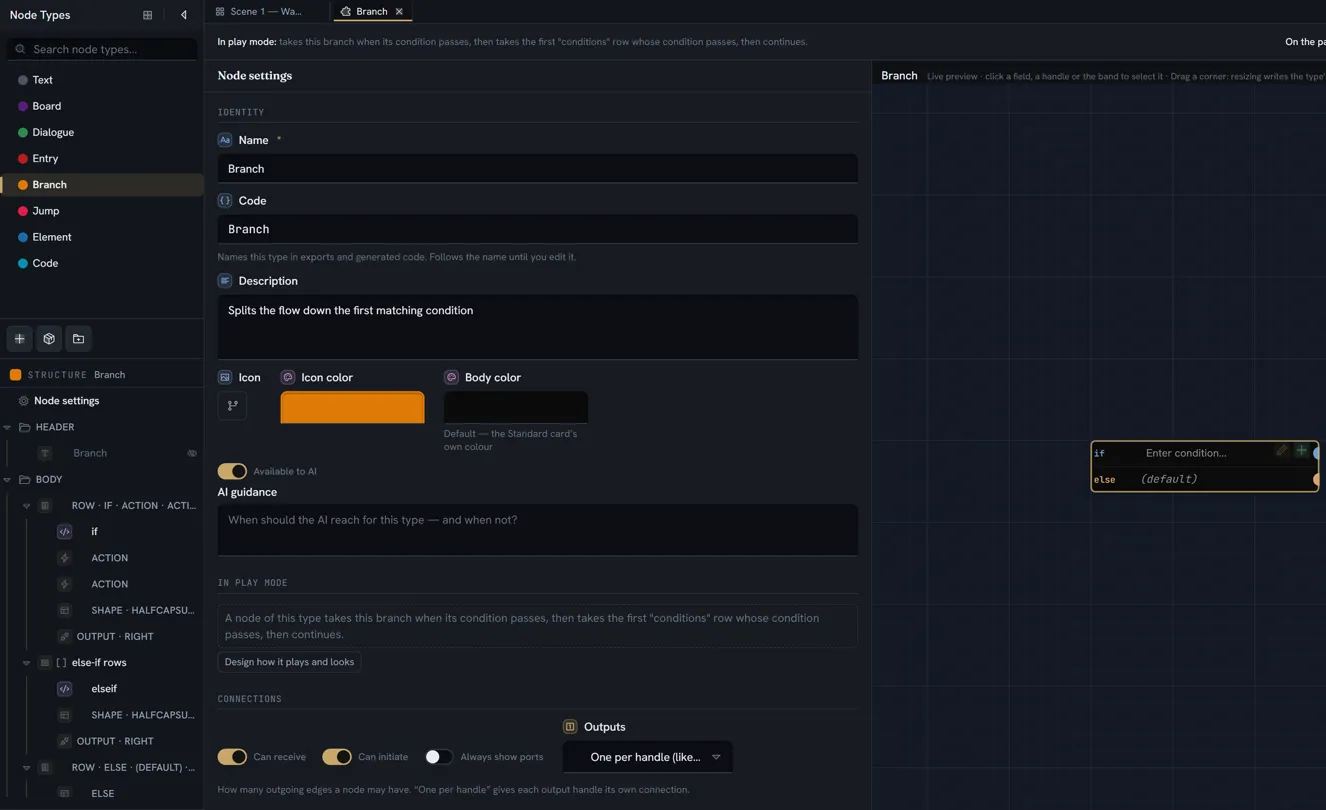
The complete field, item and appearance tables are the node builder reference; this page is the path through them. Every label below is the one on the screen, so you can search the pane for it.
1. Make the type
Open Node Types on the activity bar. In the footer of the tree, press New type.
A sheet titled Start from opens. Its Name box is already selected, holding New node type for you to replace — type Skill check. Below the name, under Or start from a library type, are the library’s cards grouped by pack, each a real node drawn small, with a search box above them; along the bottom, three buttons: Cancel, Describe it… and Create blank. We want to learn the builder, so press Create blank.
The type opens as a tab, at the end of the tree, and two things appear:
- In the drawer, under the Node Types tree, a second tree headed Structure with the type’s name beside it: a Node settings row at the top, then a HEADER and a BODY folder, both empty. In its footer, one + button, captioned under Body. A splitter between the two trees lets you give either one more room.
- In the tab, the inspector — one column showing whatever is selected, right now Node settings — with the live preview above it: a real node of the type, drawn on a strip of canvas. Its card reads A node of this type does nothing yet — add a field. You will click things on this card to select them. Give the tab enough width and the preview moves to a full-height column on the right of the inspector instead.
Across the top of the tab, one line: In play mode: does nothing — it has no text, no script and no outputs, so a player passes straight through it, and at the right On the palette: slot 1 · toolbar (the number is the first free slot in your project’s radial menu), then Hide preview. The first tells you what a node of the type will do when played; the second tells you the type is already on the board’s menus. Both will change as you build.
Under Identity in the inspector, the Code already reads skillCheck — the name turned into
an identifier. It follows the name until you edit it; leave it.
2. Add the fields it needs
A skill check needs three things: what is being attempted, which statistic it tests, and how hard it is.
The prompt. Press the + in the Structure tree’s footer — its caption reads under Body. A menu lists what a body can hold, with a line for each — Field, Repeater, Row, Heading, Element, Action, References. Pick Field. (Right-clicking the BODY folder offers the same entries as Add field, Add repeater and so on.)
A row named New field appears under BODY, and the inspector switches to it, in four groups:
Type & code, Type settings, Where & when and Look. In Type & code, click the
Rich text tile, then replace New field in the label box with Prompt and press Enter. The
Code under the tiles follows it to prompt, the row in the tree is renamed, and the preview
redraws with a text box.
Rich text because a challenge often wants emphasis and an interpolated value — Climb the {wallHeight}m wall.
The statistic. Press + again, pick Field, click the Variable link tile and label it Tests. That stores a reference to one of your project’s variables rather than the name of one, so renaming the variable later cannot strand this node.
The difficulty. + › Field once more; click the Number tile and label it Difficulty. Its Type settings offer Allow decimals, Step and a Range — leave all three alone. A difficulty is a whole number, and there is no default value to set: every node starts with the field empty.
The top line now reads In play mode: shows “prompt”. — the read-out names fields by their codes.
3. Put the two small fields side by side
Click the BODY folder in the Structure tree: the inspector is the body’s own page. Under Grid, set Body columns to 2 columns. Then click Node settings at the top of the tree, scroll to Appearance, open Labels & text and turn Show field labels on: a new type starts with labels off and placeholders in their place, and we want the card to read.
Now click the Tests label on the preview card. The inspector switches to that field, and the tree highlights it. In Where & when, Span — which was greyed a moment ago with needs a second column — now offers Full width and 1 column; pick 1 column. Click Difficulty on the card (or in the tree) and do the same. The two fields sit on one row; the prompt keeps its own row above them.
4. Give it exits — the repeater
Now the part that makes this a node type rather than a form.
Click the BODY folder in the tree so the footer’s + reads under Body again, press it, and pick Repeater — a list the writer grows; each block can be an exit. A repeater holds a small block and instantiates it as many times as the data says, which is how a node gets a number of exits its author did not fix in advance.
In the tree the repeater is a folder of its own, marked [ ] for a list, with one item already
inside it. The inspector shows the repeater in three groups. At the very top is its label box:
change Items to Outcomes. Then:
| Group | Setting | Value |
|---|---|---|
| List | Code | outcomes — the code does not follow the label, so type it; it names the list in generated code |
| List | Add button | Add outcome — the caption of the button a writer presses on the node |
| List | Min | 1 — a skill check with no outcomes is not a skill check |
| Each block | Block style | leave Card |
Under Each block is a short list of what every block holds — one Text field labelled Label — with its own Add button. Click that Label row, or the Label leaf under Outcomes in the tree; it opens in the inspector like any field, with Outcomes › Label on its first line to say where it lives. Rename it Result.
Then click Outcomes in the tree: the footer’s + now reads inside Outcomes. Press it — the menu is shorter inside a block: Field, Repeater, Heading, Element, Action, Handle — pick Field, click the Condition tile and label it When. The tree now shows Result and When under Outcomes.
A red banner appears the moment the condition lands — ‘When’ is edited in a dialog and nothing opens it. Leave it for a minute; the next step is about exactly that.
Finally the handle. With Outcomes selected, press Add handle in the inspector’s Exits group — or the footer’s + and Handle, a port on each block — every block becomes an exit. The handle’s card opens inside Exits: Side Right, Kind Output only; leave both. In the tree it is a leaf under Outcomes reading OUTPUT · RIGHT. The top line flips to In play mode: shows “prompt”, then offers one option per “outcomes” row.
That is the whole mechanism. Each block a writer adds becomes one exit, its When is the gate, and its Result is the text a player sees on the option.
5. Give the condition a door
A Condition field is edited in the node’s dialog, never on the card — and the dialog only opens from a button. Without one, a writer could add outcomes but never write a When. The builder said so the moment you added the field: the red banner across the top of the tab reads ‘When’ is edited in a dialog and nothing opens it, explains why, and carries the fix as a button — Add an ‘Edit this node’s fields’ action. Press it.
The banner goes, and an action named Edit this node’s fields lands at the end of the body — in the tree, and as a button on the preview card. Click it to see what the banner made: an action whose Does is Edit this node’s fields, its Button label following the verb, its Position In the card. You could have built the same thing by hand with + › Action and picking the verb; the banner just saves the trip.
6. Make it look like something
A header band. Click the HEADER folder in the tree: the inspector is the band’s page. Click the Color swatch and pick one from the presets. The band appears on the preview at once, and two more controls with it — Min height and Padding. Then click the folder’s first row — the type’s name, the title — and turn on Show on the card, so the band carries the type’s name.
A corner mark. Click Node settings in the tree again. Under Appearance, open Marks and set Corner mark to Corner ticks. It is a small thing that makes the type identifiable when you are zoomed out and can no longer read the text. Edge rail, Border and Prose face sit beside it; leave them.
An icon colour. Back at the top, under Identity, click the Icon color swatch and pick one. This colour is what the board’s menus, the minimap and the tree dot use for the type; without it the type’s slot on the radial menu is a grey circle that is easy to mistake for an empty one.
7. Check how it connects
Under Connections in Node settings, Can receive and Can initiate are both on — the story can reach the node and leave it. Outputs no longer shows a menu: it reads one per block of Outcomes (derived), because the handle you gave the block already decides that every outcome is its own connection. Nothing to set.
The full sentence under In play mode — A node of this type shows “prompt”, then offers one option per “outcomes” row. — is computed by the same rules play mode uses, so it cannot drift from the truth. If it says something you did not intend, the type is wrong, not the read-out.
8. Put one on a board
Open a board, right-click empty canvas, and pick Skill check from the radial menu — it is in the first free slot, in the icon colour you chose. Or drag it from the toolbar at the bottom of the canvas, where it sits at the end of the row.
The node lands with its band, its three fields, one outcome (the Min you set), and the Edit
this node’s fields button. Fill in a prompt. Press the outcome’s + to add a second one, then
double-click each Result box and type You make it and You slip. Press Edit this node’s
fields: the
dialog lists OUTCOMES, one When per block, each with the condition builder — give the first
athletics >= 12 and leave the second untouched.
Drag from each outcome’s port on the node’s right edge to another node. Press Play and walk into it.
9. Change it, and watch nothing break
Go back to the type and, on Difficulty, click the Text tile.
Return to your board. The node still renders, and the difficulty you typed is not gone — it is parked. Click Number again and it returns.
That is the guarantee worth internalising before you start reshaping a type that already has fifty nodes of it: a type change destroys nothing. A removed field’s values are parked too, and adding a field with the same code and type offers Reclaim removed data at the top of its inspector. The only thing that discards a parked value for good is the explicit Clean unused data… action on the tree’s right-click menu.
What you built, and what to read next
You now have a node type with a rich-text field, a reference field, a repeater producing real exits, a header band and a door to its dialog — which is most of the builder.
| Next | Why |
|---|---|
| The node builder reference | The overview, and the door to every page below |
| Field types | Every type tile, what each stores and what a game receives |
| What a node body holds | Repeaters, rows, headings, actions — everything the Add menu offers |
| Handles, ports and flow | Exits, the derived Outputs rule, and the read-out in full |
| Conditions and gates | The language your When fields are written in |
One thing to know before you share this: a node type is copied, not published. There is no package format and no versioning — Copy it from the tree’s menu, paste it into another project with Paste node type, and you have an independent type with its own identity. Paste it twice and you have two types.