Project settings
Every setting on the four tabs — languages, rich-text features, the game's entry node, export and the Unity API key — with its default and what it breaks.
All documentation — Project settings
Boards and the canvas
The node builder
Modelling the world
Variables, logic and commands
Voice and audio
AI
Working together
Project settings
On this page
Project settings is the gear at the bottom of the activity bar, below Projects. It has no
Ctrl+ number. It opens a Settings tab beside your boards and leaves the list on the left as it
was. The rail keeps showing which list is open; the tab strip shows that Settings is in front.
Nothing here has a Save button. Every change is written to the project immediately and reaches your collaborators as you make it. Changes are undoable with the project’s own undo.
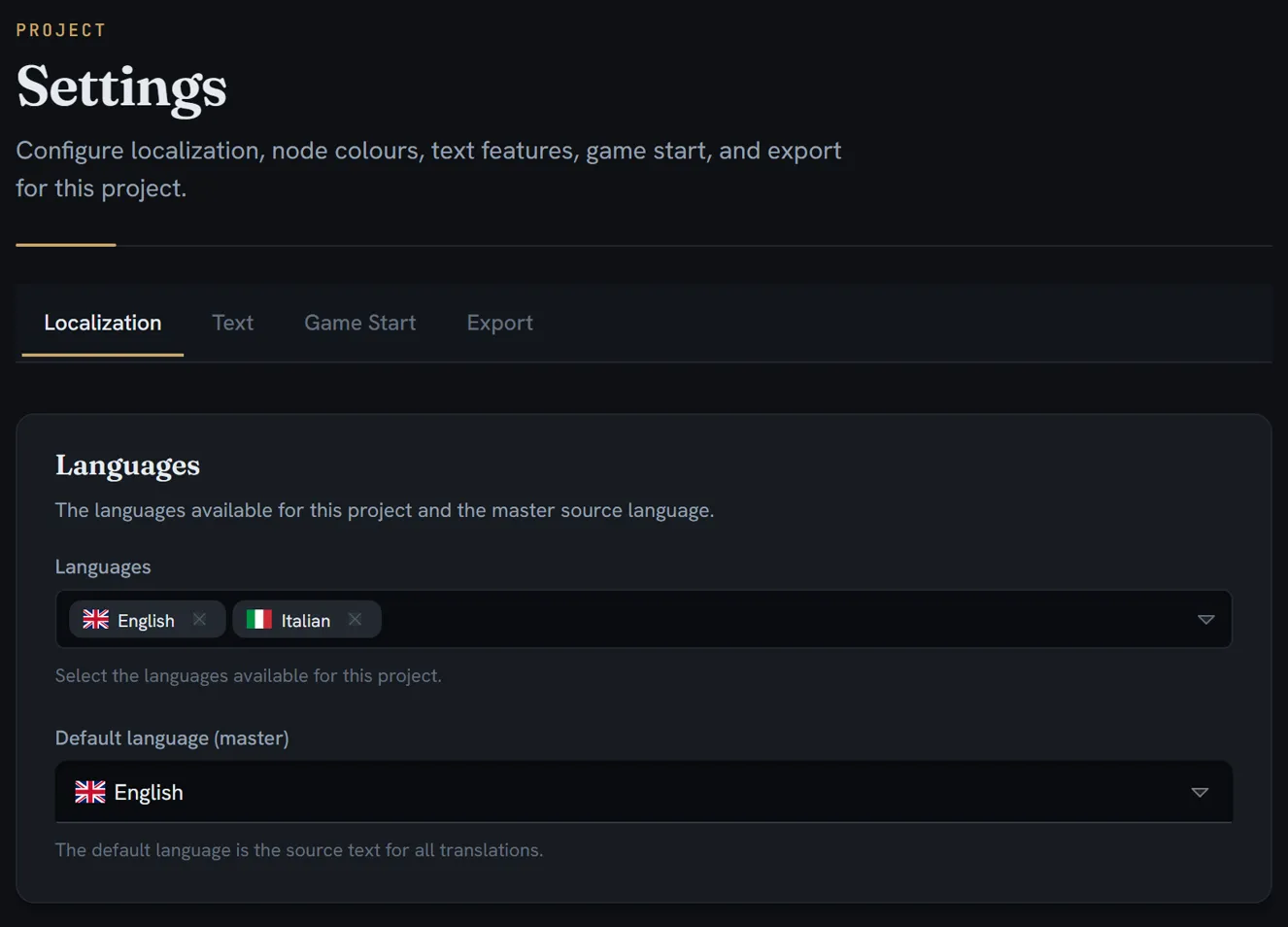
Inside the page, four tabs of its own: Localization, Text, Game Start, Export. The page opens on Localization.
Localization
| Setting | What it controls | Type | Default |
|---|---|---|---|
| Languages | Which languages exist in this project | A multi-select over the 30 supported codes | en |
| Default language (master) | The source text every translation is made from | One of the enabled languages | en |
The default language picker only offers languages you have enabled, so the two cannot disagree.
The 30 supported codes: en, en-US, it, fr, de, es, pt, pt-BR, ru, zh, zh-TW,
ja, ko, ar, pl, nl, sv, da, fi, no, tr, cs, el, he, th, vi, id,
uk, hu, ro.
If you remove the language that is currently the default, the default silently becomes the first language remaining in the list.
Text
Fifteen switches deciding which rich-text formatting is available in node editors. Turning one off hides its toolbar button and blocks its keyboard shortcut; content already formatted that way is preserved, not stripped.
| Group | Features |
|---|---|
| Basic Formatting | Bold Ctrl+B · Italic Ctrl+I · Underline Ctrl+U · Strikethrough Ctrl+Shift+X |
| Colors | Text Color · Highlight Color |
| Structure | Headings (H1–H3) · Bullet List Ctrl+Shift+8 · Numbered List Ctrl+Shift+7 · Font Size · Text Alignment |
| Advanced | Superscript · Subscript · Code Block Ctrl+Shift+C · Links Ctrl+K |
Every one of the fifteen defaults to on. Only an off is stored, so a project that has never visited this tab has all fifteen available and nothing recorded.
A Reset to Defaults button appears once at least one feature is off, and re-enables all fifteen.
Game Start
| Setting | What it controls | Type | Default |
|---|---|---|---|
| Entry node | Which node the game starts at | One of the project’s entry nodes | Unset |
The picker lists every entry node in the project, labelled «board name» / «trigger code» — or «board name» / (no trigger). A Clear button appears once something is chosen. With no candidates it reads No entry nodes found. Add entry nodes to your boards first.
“Entry node” is structural rather than a type name: a node counts if its node type declares that it cannot receive a connection. The standard pack’s Entry type is the one that does, but a node type you author yourself qualifies on the same rule.
What reaches the engine. Choosing an entry node generates a GameData.StartGame() convenience
method plus the GameBoards.GameStartBoard and GameBoards.GameStartNode constants in the Unity
code generator’s output. The board id and the node id are written together in one transaction, so a
collaborator can never observe a board that does not contain the chosen node.
Export
Three actions. None of them is a stored setting.
Export
Download ZIP produces a full archive of the project: every board, node, entity, document, tag, variable, trigger, command, and the media files themselves. It runs in your browser and can be cancelled while it is going; the progress line reads Preparing export…, then Downloading media (n/m files — X / Y), then Creating ZIP archive….
The file is named «project name»_«YYYY-MM-DD».zip, with anything outside A–Z a–z 0–9 - _
stripped from the name.
Media health
Check Media Health looks for media that the project references but storage does not have. It never runs on its own — only when you press it. Success reads All n media files are healthy; otherwise you get k of n media files are missing from storage and a table of Name, Type and Media ID.
Unity integration
Generates the API key the TaleShard Unity Editor extension uses to connect. The plaintext key is shown once, with Copy this key now — it won’t be shown again; afterwards only a masked form is displayed.
- Regenerate — The current key will be permanently invalidated. Any Unity client or script using it will stop working.
- Revoke — This will permanently delete the API key. Any Unity client or script using it will lose access.
The key is scoped to this project, and the project and server are resolved from the key itself — there is nothing else to type into the plugin’s sync window.
What is stored where
| Scope | What |
|---|---|
| Per project, shared with collaborators, undoable | Everything on all four tabs |
| Per browser, never shared | The Theme Editor’s active and saved themes, the sidebar’s width and collapsed state, the localization panel’s width, the section you were last in, the tabs you had open, and every floating panel’s position |
| Per organization | Nothing on this page. Roles and plan entitlements come from the server. |
Settings that live elsewhere
A project stores several more settings that this page does not show, because they are edited where they are used: the node-type subsets the AI is allowed to generate (on the Dialogue board tab of Thalia’s dock), and the screenplay import’s mapping, roster, cast and part colours, presets and grouping (in Screenplay).
What breaks
| Situation | What happens |
|---|---|
| Removing a language | Every translation in it is deleted, with no warning |
| Removing the default language | The default becomes the first language left |
| Setting a default that is not enabled | Refused — Language «code» is not in the enabled languages list. The picker cannot reach this state. |
| Game start points at a deleted node | The picker shows nothing selected; the list is rebuilt from the live boards |
| Export finishes with problems | Export completed with n warning(s): «first warning» |
| Export cancelled | Nothing is reported |
| A media or API-key request fails | An inline message — Failed to check media health, Failed to get API key status, Failed to generate API key |
Limits
No setting on this page is plan-gated, and none of them is capped. The limits a project does have — how many projects, how much storage per project, how large one upload may be, and how many AI credits a month — are on the pricing page.