Managing node types
The Node Types section, creating and sharing a type, its code, the palette editors, deleting a type and what its nodes do, the destroys-nothing rule, and undo.
All documentation — The node builder
Boards and the canvas
The node builder
Modelling the world
Variables, logic and commands
Voice and audio
AI
Working together
Project settings
On this page
- The Node Types section
- The tree
- Creating a type
- New — the Start from sheet
- Duplicate
- Copy and paste — sharing a type as text
- Add node types — the library
- A pack of records — Input actions
- Where a new type lands
- Naming a type, and its code
- The duplicate banner
- The palette — what the canvas offers
- Radial menu
- Canvas toolbar
- A slot whose type is gone
- Deleting a type
- Changing a type that has nodes
- Undo
- What reaches the engine
- Limits
- What breaks
Everything around a type rather than inside it: the section and its tree, the five ways a type comes into a project, its name and code, which types the canvas offers, what deleting one does to the nodes that use it, and what an edit to a type can and cannot destroy. What goes inside a type is fields, the body, presentation, appearance and connections.
The Node Types section
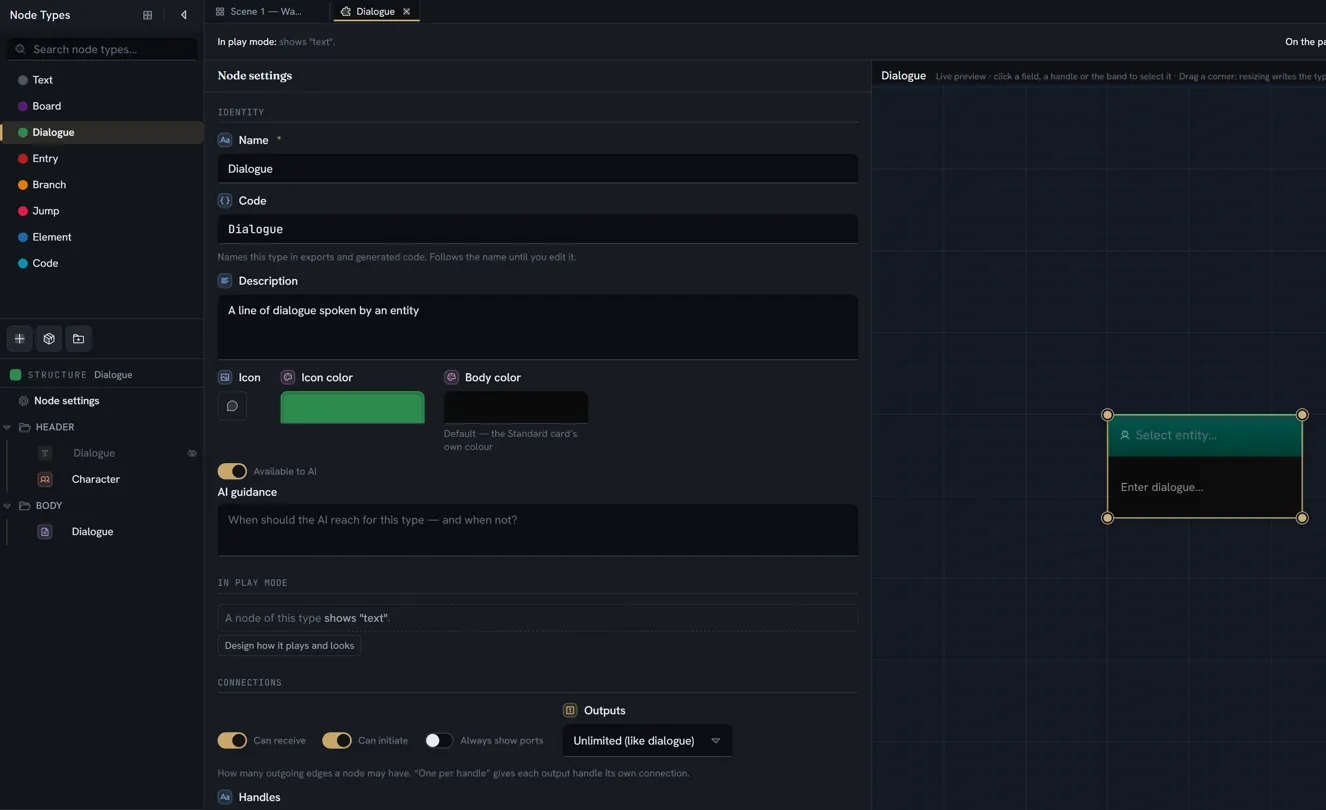
Node Types is a button on the activity bar, with no keyboard shortcut. It shows two things:
| Where | What it shows |
|---|---|
| The side drawer | Titled Node Types, the tree of your types — and, while a type’s tab is active, a second tree under it, Structure, with that type’s items. Each type you open is a tab in the editor area |
| The Palette button, in the drawer’s title row | Opens a tab named Palette in the editor area, holding the two palette editors. It sits beside your board and type tabs and closes like any other; the button is lit while that tab is in front |
The tree
A search box at the top, placeholder Search node types…, filters by name. Each type is a row with a coloured dot — the type’s Icon color — and its name. Folders expand and collapse. Drag a row to reorder it or to move it into a folder. Clicking a type opens it as a full tab — not the preview tab a single click on a board opens, so it is never replaced by the next thing you click; clicking a folder only opens or closes it. The row of the type whose tab is active is highlighted.
While a type’s tab is active, the drawer splits: the type’s Structure tree appears under the Node Types tree, with a splitter between the two that you can drag to give either more room. What that tree holds, and how you add and arrange items in it, is the body page.
Three icon buttons sit in the Node Types tree’s footer: New type, Library and New Folder. The rest is on the right-click menu, and what it offers depends on where you right-click:
| Menu item | Offered on |
|---|---|
| New Node Type | Anywhere — it opens the same Start from sheet as the footer’s New type. Inside a folder, the type is created in that folder |
| New Folder | Empty space, or a folder |
| Rename | A type or a folder |
| Duplicate | A type |
| Delete, or Delete N items with several selected | A type or a folder |
| Copy | A type |
| Clean unused data… | Empty space only — it is a project-wide action, not a per-type one |
| Add from library… | Anywhere |
| Paste node type | Anywhere. On a folder, or on a type inside one, the pasted type lands in that folder |
Folders are organisation only. They never appear in the canvas menus, are never sent to a game engine, and are not shown to the AI. Deleting a folder deletes the types inside it, and the confirmation counts all of their nodes together.
Creating a type
Five ways, and they differ in what the new type starts with and whether it is the same type as something that already exists. Every one of them also puts the new type on the board’s menus — see the palette.
New — the Start from sheet
New type in the footer, or New Node Type on the menu, opens a sheet titled Start from: A blank type to build by hand, a library type to edit a working one, or describe it and let the assistant build it beside you. Every route makes a real type in your tree.
At the top is a Name box, already selected, holding New node type for you to replace. Below it, Or start from a library type: a search box, Search the library…, and then the library’s cards grouped under their packs — Standard pack first, then the other packs; a type that several packs list appears once, under the first — each a real node drawn small, with its description, its field count, a note such as branches or starts a board where it applies, and a copy under your name. Three buttons close the sheet:
| Button | What it makes |
|---|---|
| Create blank | An empty type with the name you typed. It opens on its Node settings with no fields, no header band, the default colours, one body column, field labels off, and a size that grows with its content. Its Code is the name turned into an identifier — skillCheck for Skill check |
| Start from ‹card› | A copy of that library type under the name you typed, or ‹Name› copy if you typed nothing — a new type with its own identity, ready to edit. The toast reads Added a copy of “Text” as “…” |
| Describe it… | A blank type with the name you typed, and the assistant’s dock opened beside it |
An empty type is the wrong starting point for most people. If what you want resembles a type the library ships, start from its card and edit the copy.
Duplicate
Duplicate on a type’s menu makes a clone in the same folder, named «Name» copy (then copy 2, and so on if that name is taken), with a code made unique in the same way. Everything inside the type is carried over. The clone is a new type: no existing node points at it, and nothing you do to it touches the original.
Copy and paste — sharing a type as text
Copy on a type’s menu puts the whole definition on your clipboard as plain text, with the toast Copied “Name”. That text is the sharing format: paste it into a message, a file, or straight into another project with Paste node type on that project’s tree, which opens the result and toasts Pasted “Name”. There is no package format and no versioning beyond this.
What a pasted definition keeps, and what it does not:
| Kept | The name, description, icon and colours; every header and body item, with their settings, handles and codes; the size settings; the AI availability and guidance |
| Made unique | The code: rewritten if it is not an identifier, and given a numeric suffix if the project already has a type with it — as it would be in the builder |
| New | Its identity. A pasted type is a separate type even in the project it was copied from, so no existing node uses it |
| Where it lands | The folder you right-clicked, or the root, and first in the list |
| Reconciled | A setting the builder no longer knows is dropped the first time you edit the type; a maximum size below the minimum is dropped; a value that is not one of the choices a setting offers falls back to the default; a colour that is not a hex value is dropped |
| Refused | Text that is not a node type, a definition over 512 KB, or one nested more than 32 levels deep — the toast reads The clipboard does not contain a node type, with Copy one from the Node Types list first. |
Codes inside a pasted type are kept as they are, which is the one way a type with two items sharing a code can enter a project. The builder shows it as a red banner and a dup badge on the rows concerned — see the duplicate banner, below.
Add node types — the library
Library in the footer, or Add from library… on the menu, opens the Add node types dialog. Its description states the rule: Every preview is drawn by the canvas itself — what you see is what it adds. A pack brings the definitions, enums and variables its types need, or reuses yours. The Start from sheet shows the same cards, but only this dialog can bring a deleted pack type back under its own identity — which is why it keeps its own door.
The dialog has two tabs and one search box. It opens on Packs: one row per pack. At the left of a row, the pack’s name, N types → (which opens it), a line saying what it is for, its tags, and its buttons — Add all (N) for the types your project does not have yet, Add the N missing when you already hold some, or All added when it has them all; and, once your project holds copies that are behind the pack, Update all (N) beside it, which writes the pack’s current version over those types (see Update, below). At the right, every type of the pack drawn as a live miniature — four to a line, on as many lines as the pack needs, over a wash mixed from the types’ own colours. Standard pack — The node types every new project starts with — is the one every project is seeded with; beside it are packs for flow and logic, studio-grade dialogue, quests and objectives, choices drawn otherwise, pictures and places, readouts and records, encounters, and configurations composed from those — a visual-novel starter, a tabletop session, a mission board, interactive fiction.
Typing in the search box cuts across every pack — a type’s name, its description, a tag, where the shape comes from, the pack’s name — and shows the matching types as cards, grouped under their pack, each group with the pack’s own buttons.
Open a pack and it shows a header band — its name, its line, what it brings (or reuses of yours), its tags, Add all, Browse these N in Node types → — with three of its types fanned beside them, then its types as cards, with ← All packs to return. Each type’s card shows:
- the type’s name and icon, and its marks — In project when you already have it, with an Update button beside it when your copy is behind; and, when the type is also listed in another pack, a small +N (hover it for the names);
- a line made of its description, a count of its fields, branches when it offers one exit per block, starts a board when it is an entry type, and — where the type needs a project object — what it brings or reuses of yours, such as reuses your Trigger (enum);
- a live miniature — the real node, drawn by the same renderer as the canvas, filled with sample content and scaled down to fit. It cannot differ from what clicking it creates.
Node types, the second tab, is the whole library — every type once, whichever packs list it — as cards, with a rail of facets at the left: Packs (each with its colours and its count), then Genre, Layer, Purpose and Complexity, each value with how many types carry it. Tick a facet to narrow the grid; the line above the cards says N of M types, repeats the facets you ticked, and offers Clear. The search box narrows the grid the same way. A pack’s Browse these N in Node types → lands here with that pack ticked.
The verb is decided by whether your project already holds that exact type, and it is the part worth understanding:
| Verb | Hint | When | What it does |
|---|---|---|---|
| Add | add to this project | Your project does not have this type | Adds it with the pack’s own identity. Any node that still points at that identity — a node left behind when the type was deleted — renders normally again the moment it lands |
| Add a copy | already here — adds a separate type, or Update it below | Your project already has it | Adds a new type named «Name» copy, a starting point for a variant. Existing nodes do not move to it |
| Update | the small button beside the In project badge, not the card’s face | Your project already has it | Overwrites your copy with the pack’s current version — same identity, same place in your tree, and every node of that type keeps working and keeps its values. A field the new version dropped is parked exactly as a builder deletion parks it, so Reclaim removed data and Clean unused data both still apply |
So Add is the way back from a deletion, and it is the only one: Duplicate and Paste both mint a new identity, which is why a pasted Dialogue cannot heal the nodes of a deleted Dialogue. A type restored with Add keeps its identity, but its code is still made unique if you had already used that code for a type of your own. Update is the way to take a pack’s fix into a type you already have without deleting it and its nodes first; Update all (N) on the pack’s row does it for every type of that pack you hold that is behind it.
Picking a card closes the dialog, opens the type, and toasts Added “Name”, Added a copy of “Name” or Updated “Name” to the pack’s current version. A library type always lands at the root of the tree, whatever was right-clicked; an updated type stays where it was. At the foot of the dialog, Describe a type instead — a blank type opens with the assistant beside it — is the same route as the Start from sheet’s Describe it…. If the library cannot be fetched, the dialog reads The node library could not be loaded.
A pack of records — Input actions
A pack can bring ready-made records as well as types: entities of a definition it brings, in a folder of their own. Input actions is one, and it has no node type at all — it brings the Input action definition, the Pad controls and Touch gestures enums, and 26 actions. Its row shows the actions by name instead of miniatures, and 26 actions → opens its band. Before you click, the button’s tooltip (and the band) says what adding does — in a fresh project, brings Pad controls (enum) · Touch gestures (enum) · Input action (definition) — adds 26 actions in the folder Input actions.
| Button | When | What it does |
|---|---|---|
| Add 26 actions | The pack has not added its records to this project yet | Creates the folder Input actions at the root of the entity tree (or uses the one already there — a folder is known by its name) and the actions in it, in one undo step. The toast reads Added 26 actions in the folder Input actions |
| Update (1 new action) | A later version of the pack has a record it never added here | Adds only the new one. Every record you have is left exactly as you left it |
| Restore 1 removed action | You deleted a record the pack added | Brings back only what you removed, into the folder. The toast reads Restored 1 action in the folder Input actions |
| All added | Nothing to add | — |
A record is matched by its code within its definition, never by its name: rename Talk to Speak, change Crouch’s key to C, and the pack still counts both as yours and never touches them. A record you delete is not re-created by Add or Update — only Restore brings it back, when you ask. If a record of another definition already uses one of the pack’s codes (codes are unique across a project), that record is skipped and the add says so; your record is untouched.
Adding a single type never brings records: Teach from Puzzles & world brings the Input action definition, so its Action picker works, but no action — the picker then offers the pack (see fields).
Where a new type lands
Every path above — the sheet’s three routes, Duplicate, Paste and the library — puts the new type last in its folder, after its siblings. Drag it to where you want it. Every path also opens the type as a tab and gives it a place on the board’s menus.
Naming a type, and its code
A type has a name, which people see, and a code, which exports and generated code use. Both are edited under Identity, the first group of Node settings — the row at the top of the Structure tree — alongside the rest of the identity block:
| Control | Hint or placeholder | Notes |
|---|---|---|
| Name | e.g., Quest, Reward, Encounter | Also editable by clicking the type’s name above the preview card |
| Code | e.g., questStep — Names this type in exports and generated code. Follows the name until you edit it. | |
| Description | Optional description of this node type | Given to the AI alongside the guidance; the library shows it on a pack type’s card |
| Icon, Icon color, Body color | The accent and the card fill — see appearance | |
| Available to AI | Off = AI generation never uses this type. On by default. | Off hides the type from every generator entirely — see document to board |
| AI guidance | When should the AI reach for this type — and when not? | Only shown while Available to AI is on |
Three switches you might look for here sit beside the thing they change instead: Show on the card is on the header title’s own page (the first row of the tree’s HEADER folder), and Show field labels and Background patterns are under Appearance › Labels & text — all on appearance.
The code rule, in full:
- It follows the name until you edit it. Rename Quest to Objective in the Name box and the
code moves from
questtoobjective— as long as the code was still the one the name produced. Once you have typed a code by hand it stays put through every rename. - It must be an identifier: letters, digits and underscores, not starting with a digit. Type anything else and the builder rewrites it when you leave the box — spaces and punctuation are removed, words are run together, a leading digit gets an underscore — and the box then shows what actually landed.
- It is unique among your project’s types. A code another type already uses gets a numeric
suffix — type
questwhile aquestexists and you getquest_1. A code that differs from another only by case or underscores (Quest,qu_est) counts as taken too. The box shows the result.
One more thing follows the name on the same rule: the title drawn inside the node — the header band’s own label — moves with the name until you set it to something else.
Rename on the tree is different: it changes the name only. The code does not follow it, and from then on it will not follow later renames from the Name box either, because it no longer matches. Rename from the Name box when you want the code to move with the name.
An open tab keeps the name it was opened with. Close and reopen the type, or reload, to see the new one on the tab.
The duplicate banner
Codes inside a type also have to be unique — each names a generated property. The builder keeps them unique as you add and rename items, so a collision can only arrive with a pasted or imported type. When one is present, a red banner across the top of the type’s tab reads N export-code problem(s) and lists them — no code, “x” is not a valid identifier, “x” is already used — and each offending row in the Structure tree carries a dup badge whose tooltip says why. The banner blocks nothing; it is there so a definition that cannot generate cleanly is visible. Fix it by editing the codes.
The palette — what the canvas offers
The Palette tab edits the two ways a node is created on a board: the radial menu on a right-click of empty canvas, and the canvas toolbar you drag from. Both are grids of slots, each holding one of your types or nothing.
A type is placed for you the moment it is created, by any route: the first empty slot of the radial menu, and the end of the toolbar — which grows by a column, then a row, when it is full. The builder’s top line says where it landed: On the palette: slot 1 · toolbar, or toolbar alone when the ring had no room, or not yet when neither had. From there the slots are yours to rearrange.
A fresh palette is seeded with the first nine of the project’s types, in their order — on a new project, that is all eight types of the standard pack. Reset to default on either editor returns to that.
Clicking any slot opens the same list: Empty at the top, then every type in the project with its icon. An empty slot is drawn as a dashed circle or cell with a plus. A type with no Icon color of its own draws as a grey circle with its icon, easy to mistake for an empty slot — give the type a colour under Identity.
Radial menu
Header Radial menu, with the caption Click a slot to assign a type (or empty). The center is your last-used type (auto). The stage on the left previews the rings at their real geometry; the dashed dot in the centre, titled Last-used type (auto), stands for the slot you cannot assign.
| Control | Range | Default |
|---|---|---|
| Node size — the diameter of every circle | 28 to 76 px | 48 |
| Dialogue suggestions — Recent characters that fan out from a node type with a character field. Sized + spaced independently of the node circles. — Size | 16 to 56 px | 30 |
| Distance | 20 to 180 px | 44 |
| Spread | 8 to 60 degrees | 16 |
| Inner ring and Outer ring — Radius | 50 to 300 px | 83 |
| Items per ring | 3 to 16 | 8 |
| Add outer ring | Two rings at most | One ring |
A new outer ring starts with eight empty slots, 80 px beyond the ring inside it. Remove ring (the trash icon on a ring’s card) takes a ring away; it is not offered on the last remaining ring.
Canvas toolbar
Header Canvas toolbar, with Click a slot to place a type, or set it empty. Empty cells stay as gaps. Steppers set Rows (1 to 4, default 1) and Columns (1 to 12, default 9); growing or shrinking the grid keeps each type at its row and column, and a type created while the grid is full grows it by one column for you. Below them, the grid itself, drawn on a canvas-coloured frame, each cell showing the type’s icon and accent stripe.
A slot whose type is gone
Deleting a type does not clear its slots. On the canvas the slot is simply drawn empty, and the arrangement underneath is untouched — put the type back and the slot fills again. In the Palette tab the slot is drawn as a red dashed circle or cell reading Deleted type — Deleted type — click to clear — and clicking it opens the usual list with Clear (deleted type) at the top. Each editor’s header also offers Clear deleted type (or Clear N deleted types) to empty all of them at once.
Deleting a type
Delete on a type’s menu opens a confirmation beside the row. With nothing using the type it reads Delete “Name”? with Cancel and Delete. When nodes use it, a second line appears:
Used by 1 node across 1 board — they’ll show as “missing type”. “Delete type & nodes” removes them too.
and the buttons become Cancel, Delete type & nodes, and Delete type, in that order. Several selected rows read Delete N items?, the buttons say types when more than one type is affected, and the counts are summed over all of them and over every type inside a selected folder. Either delete closes the type’s tab; its slots on the palette read Deleted type until you clear them.
Delete type — the default — keeps every node. Each one renders as a placeholder instead: a card reading Missing node type with the type’s id under it, and the full id in its tooltip. The placeholder is read-only, keeps its four connection points, and keeps every edge, so the graph around it is intact. Nothing in the node is rewritten, which is what lets it heal:
| The type comes back by | Its nodes |
|---|---|
| Undo | Render normally again |
| Add from the library, for a standard-pack type | Render normally again — Add keeps the pack’s identity |
| A collaborator’s undo | Render normally again |
| Paste or Duplicate | Stay placeholders — both create a new type |
Delete type & nodes deletes the type and every node of it on every board, together with the edges touching those nodes, in one go. That part is not undoable: undo brings the type back, not the nodes. The count in the confirmation is the guard.
The Clean unused data… sweep leaves the nodes of a missing type alone — its confirmation says so — in case the type returns.
Changing a type that has nodes
A type change destroys nothing. Whatever you do to a type, the values already stored on its nodes survive until you explicitly clean them up. Three mechanisms make that true:
- A value that no longer fits reads as empty. Change a field from Number to Text, or the reverse, and each node shows an empty field that accepts the new kind of value. Nothing is converted and nothing is lost. The one change this does not catch is between two kinds that store the same shape — a Text field turned into an Entity field, say — where the old value is handed back as it is, because nothing can tell a sentence from an id.
- The displaced value is parked. The old value is kept beside the node’s live values, tagged with the kind it was written under. Change the field back and it returns — even if you typed a new value over it in between.
- A removed field’s values stay on every node. Removing a field that holds content asks first — Remove this field? — with the count: N nodes hold content in this field. It stays in the project — re-adding a field with the same code and type brings it back, and “Clean unused data” is what removes it for good. Removing an empty field asks nothing.
To bring a removed field’s values back, add a field with the same code and the same type. The field’s inspector then opens with a notice at its top — A field with this code and type was removed. Its content is still stored on every node — reclaim it, or it stays unused until the next cleanup. — with a Reclaim removed data button. Nothing is reclaimed until you press it. A type remembers its last twenty removed fields for this offer; older ones are no longer offered, though their values are still there for the sweep. A removed repeater cannot be reclaimed at all — removing one field inside a repeater’s block can.
The one action that deletes any of this is Clean unused data…, on the tree’s right-click menu on empty space. It is project-wide. It plans first and states what it would remove — This removes N values of deleted fields, N unused code fields, N unused text fields, N values kept from a type change across N nodes. — followed by This cannot be undone., and only Clean up acts. Nodes whose type is missing are left untouched and the dialog says how many. If there is nothing to remove, the toast reads Nothing to clean — no unused node data. Afterwards the toast reports what actually went, which can be less than the plan if a collaborator changed something meanwhile.
The Entities section has the same action, with the same wording, for entity items.
Undo
The builder has no Save button and no draft. Every change is written the moment it commits —
selects, checkboxes and colours at once; text boxes when you pause for a moment, leave the box, or
press Enter — and each commit is one step on the project’s undo stack. Ctrl+Z, or Undo in
the header, steps back one at a time; History lists them. See
undo in a shared project.
| Action | Undoable |
|---|---|
| Any edit inside a type | Yes, one step per commit |
| Creating, renaming, duplicating, pasting, moving or reordering a type or folder | Yes |
| Deleting a type — Delete type | Yes; its nodes render normally again |
| Delete type & nodes | The type, yes; the nodes and their edges, no |
| Clean unused data… | No — the dialog says so |
| Typing into the live preview node | Not a change at all; the preview’s content is thrown away when the tab closes |
| Changing the palette | Not on the stack; Reset to default is the way back |
What reaches the engine
Of everything on this page, a game engine receives the type’s name, its code, and a class name derived from the code — sanitised and made unique across the whole export, which is what generated code actually uses. The code itself travels only so a diagnostic can name what you typed. The description, icon, colours, folder and palette do not leave the project.
Because the builder keeps codes valid and unique as you type, two types with the same code can only meet in an export through a paste, an archive, or two people naming types at the same moment. The export still compiles — the class names are uniquified — and the diagnostic names the duplicate.
The templates a type’s fields and repeaters become are on the node builder overview; the game side of the same contract is connecting a game engine.
Limits
| What | Limit |
|---|---|
| Node types, folders, nesting of folders | Nothing caps them |
| A pasted definition | 512 KB, and 32 levels of nesting; larger or deeper is refused |
| Removed fields a type remembers for Reclaim removed data | The last 20 |
| Radial rings | 2 |
| Items per ring | 3 to 16 |
| Toolbar grid | 1 to 4 rows, 1 to 12 columns |
| Packs in the library | The packs the dialog lists; no other source exists |
What breaks
| Situation | What happens |
|---|---|
| A node’s type is deleted | The node renders as Missing node type with the id, read-only, edges intact. It heals when the type returns by undo or by Add from the library |
| You add the library type again to heal the nodes, but it says Add a copy | The project still has that type — the nodes are missing for another reason. Add is only offered when the identity is absent |
| You paste a type to replace a deleted one | Its nodes stay placeholders — a paste is a new identity |
| Delete type & nodes, then undo | The type is back; the nodes are not |
| Rename on the tree | The code stays where it was, now and through later renames |
| A renamed type’s tab still shows the old name | The tab keeps its opening name; reopen it |
| A pasted type shows N export-code problem(s) | Two of its items share a code, or one is not an identifier. Edit the codes; the banner blocks nothing |
| A palette slot is blank on the canvas but reads Deleted type in the Palette tab | Its type was deleted; clear the slot, assign another, or put the type back |
| The node library could not be loaded. | The library could not be fetched; try again |
| A field you re-added does not offer Reclaim removed data | Its code or its type differs from the removed field’s, or the removal is older than the last twenty |
| Clean unused data… removed fewer values than it announced | A collaborator restored something while the dialog was open; the sweep re-checks before deleting |