Conditions and gates
How to make an exit conditional — the two kinds of gate, the blank-gate trap, what a condition may not do, and why the Visual and Code views cannot disagree.
All documentation — Variables, logic and commands
Boards and the canvas
The node builder
Modelling the world
Variables, logic and commands
Voice and audio
AI
Working together
Project settings
On this page
A gate decides whether the story may take a particular way out. This page is how to write one.
The language itself — every operator, every function, every coercion rule — is the variables reference. What follows is where a condition goes and how it behaves.
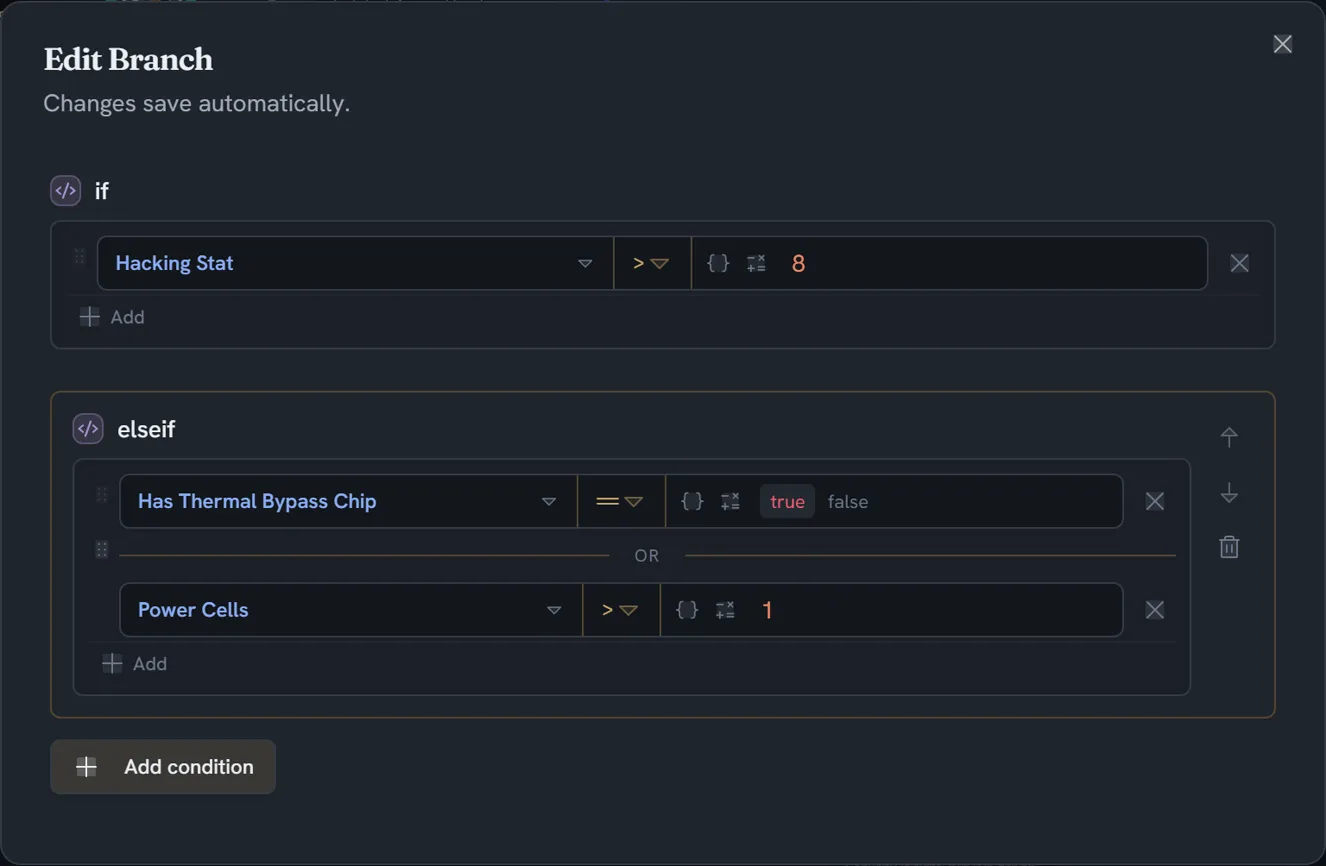
Gate an exit
There are two places a gate can live, and both are checked before an exit is offered.
On the edge
Right-click the edge. Under Condition you get Add Condition — or Edit Condition if it already has one — which opens Edit Connection Condition:
This connection is only available while the expression is true. Leave it empty for a connection that is always available. Changes save automatically.
The row reads IF and then your expression, with a clear button that appears once there is something to remove. There is no Save button anywhere in it.
The condition is stored as collaborative text on the edge itself, so two people can edit one condition at the same time without either losing work.
Use this when the condition is about this connection — the player has the key, reputation is above 3.
On the node
A node type can declare a field whose job is to gate one of its exits. A Branch node’s condition rows are exactly this: the node type owns the field, and each row is one exit.
Use this when the node type is about branching — you are authoring a mechanism, not a one-off.
The three rules a gate follows
| The gate | The exit |
|---|---|
| Is not there at all | Passes. The exit is ungated. |
| Is there, and blank, on an exit taken automatically | FAILS. |
| Is there, and blank, on an option the player picks | Passes. No condition. |
| Is there, with an expression | Whatever the expression evaluates to |
The browser player and the game engine implement this table as a matched pair, checked against shared fixtures — so an exit that fires in play mode fires in the game.
What a condition may not do
A condition cannot change anything. That is enforced by the grammar rather than by a check: the expression the parser accepts for a gate has no production for a command call, so the path from a gate to a command does not exist in the code.
The same rule blocks the mutating half of the language:
| You wrote | What you get |
|---|---|
| A command call in a gate | A condition can only use the built-in functions, and 'name' isn’t one. If it’s one of your commands, it belongs in a script — a condition must not change anything. |
inventory.add("key") in a gate | A condition can’t change anything, and 'add' changes 'inventory'. Move it into a script that runs on the node. |
random() in a gate | A condition can’t use 'random(…)', because it changes something that has to be replayable… |
When a condition errors
A runtime error never ends the playthrough. A gate that throws reads false, and the failure is
recorded rather than swallowed.
&& and || absorb an error on one side when the other side already decides the answer — so
hasKey && inventory.count > 0 still answers false when hasKey is false, even if the right-hand
side would have failed.
”Why was this false?”
Every evaluation records a trace: each part of the expression, the value it produced, how deep it was, whether it errored, and — the useful one — whether it was skipped by a short-circuit, which is a different thing from having evaluated to false.
In play mode that is the Why this step? button. Reach for it before you start adding
text(…) calls to debug an expression.
Name a condition you use more than once
A variable whose type is condition is a named expression: its text is the condition, and the
name resolves to it wherever you use it.
canEnterVault → hasKeycard && security.level >= 3Then gate three different exits on canEnterVault, and change the rule in one place.
Named expressions are always evaluated in pure mode, whatever context they are used in — so one can never smuggle a mutation into a gate. A named expression that refers to itself is refused:
'canEnterVault'is defined in terms of itself, so its value can never be worked out.
There are no parameters and no recursion.
Visual or Code — and why they cannot disagree
Every condition can be edited as rows or as text, and the toggle is per control.
Text is the source of truth. The visual surface is a projection of it. The builder parses with the same parser the runtime uses and reads the same function and method registries, then serialises back through the same encoder. There is one tree, not two that could drift.
The toggle is a two-button control in the dialog’s header, Visual and Code. It opens on Visual, and it is hidden entirely when you have read-only access.
In Code you get an editor with the placeholder e.g. health > 50 && hasKey == true, debounced and
flushed when you switch. In Visual you get the block builder, plus a monospace preview of the
expression it will produce underneath — unless the expression is just true.
A condition is built from three shapes, offered by the empty builder and again under Add below the rows once you have some:
| Shape | What it is | Example |
|---|---|---|
| Compare | A value against a value | health > 50, hasKey == true |
| Check | A built-in question — pick the function on the row’s name chip | seen(nodeId), contains(inventory, "coat"), empty(party) |
| Group | Parentheses around a set of rows, with its own AND / OR | `(a > 1 |
Every row is a condition; the three names say what kind you are about to add. Clicking AND between two rows flips the whole list to OR, and back.
Three consequences worth knowing:
- Anything the builder cannot draw is preserved byte for byte. The parse into rows is lossy, so every row records the exact stretch of source it came from and an edit splices only that stretch. Nothing you typed is reformatted on your behalf.
- Code → Visual is refused unless every control parses, silently. Visual → Code always works. If the toggle will not switch, something in one of the controls is not valid yet — and the builder says so where it can: Could not parse expression: …, Original text: …, The visual builder shows an empty condition. Edit it here to fix.
- The builder covers the whole language — all 47 built-ins through one operation row derived from
the registry, all ten methods,
for/let/break/continue, and the compound assignment operators. The one thing with no builder affordance is a named expression, which is authored as aconditionvariable.
Requirement rows are a different mechanism
Gating an exit asks may the story go this way? A requirement row on a node asks may anything
arrive here at all?, and it names a tag so the player sees [STRENGTH] rather than an expression.
They are authored from the node’s context menu — Edit Conditions → Edit Node Conditions — where each row is a tag picker (Select a condition tag…), the same expression control as above, an Unmet setting of Shown, locked or Hidden, and an optional Reason (optional — defaults to the values that failed).
With no condition-only tags in the project yet, the dialog says so and hides the add button: No condition tags available. Create a tag with “For Conditions Only” enabled in the Tags section first.
They compose with AND, they are bypassed by a jump, and the rest is with tags.
Limits
The budget a condition runs under is the same one every expression runs under: 5,000 parts, 200,000 operations per invocation, 64 levels of nesting. Enforced in the browser; nothing on the server checks them. The look-ahead pass pays the operation budget too, so a project with very expensive gates on many exits pays for all of them on every step.