Producing the lines
Voice a board a scene at a time — direct it, generate the missing lines, compare takes, approve the keepers, and attach real recordings by hand.
All documentation — Voice and audio
Boards and the canvas
The node builder
Modelling the world
Variables, logic and commands
Voice and audio
AI
Working together
Project settings
On this page
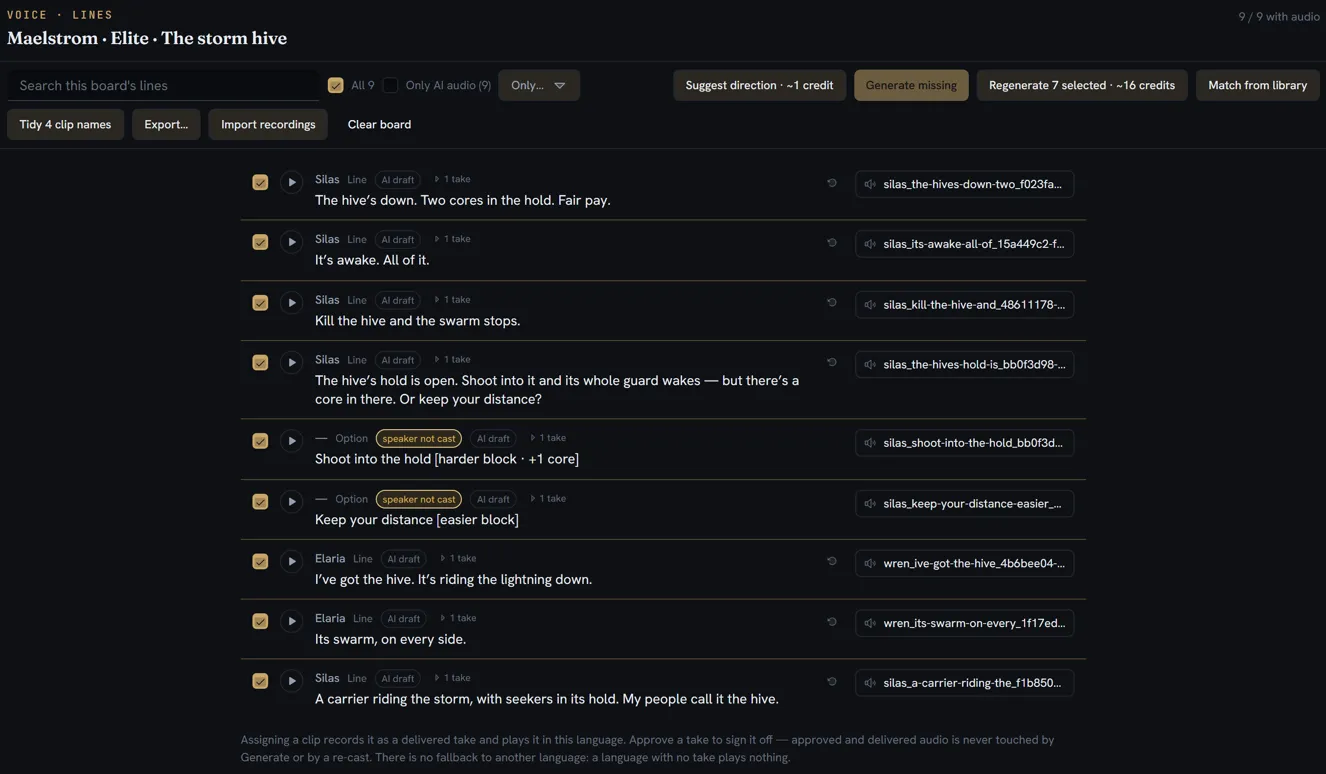
The Lines page is where voice-over work gets done: one board at a time, every voiced line in reading order, and the bulk actions in the bar above them. Before this, the speakers need a voice and a cast.
Open a board
- Open Voices on the rail and click Lines in the list’s title row. The Lines page opens as a tab.
- Pick a board in the page’s own board tree, on its left. Search boards… filters it.
The header names the board and counts its progress — 18 / 32 with audio. The language you are working in is the one chosen in the project header; switch it there to voice another language.
Each row is one line:
| Part | What it is |
|---|---|
| Checkbox | Whether this line is included in the bulk actions |
| Play | Plays the line’s current take |
| Speaker and field | Who says it, and which field it is |
| Badges | Why it will be skipped, or the state of its audio — see what breaks |
| N takes | Opens the line’s take history |
| The text | The line itself, with its direction under it |
| Regenerate | Generates this one line again |
| The audio picker | The clip it plays; Pick audio… when it has none |
Choose what the bulk actions reach
The bulk actions act on the ticked lines.
| Control | What it does |
|---|---|
| The board checkbox | Ticks or unticks every line — it reads All 32 or 12 of 32 |
| Only… | Ticks only one speaker’s lines. Shown when the board has more than one speaker. |
| Only AI audio | Shows only the lines whose current audio was generated — the pickup list. It changes what you see, not what is ticked. |
| Search this board’s lines | Filters the list |
Direct the scene
Suggest direction reads the ticked lines as one scene, in order, and adds direction where a line wants it. The button carries what it will cost.
When it finishes, a note says how many it directed: Directed 9 of 32 lines. Read them before generating — the rest are meant to be spoken plainly. A flat scene can come back with none, and that is a real answer, not a failure.
A directed line shows its direction under the text, as chips — whispers, laughs before “I told you…”:
- Click a chip to remove it.
- Press + to add another, from whispers, laughs, sighs, sarcastic, excited, curious and crying. There is no free text: a word an engine does not know could be spoken aloud.
- A chip struck through is one this speaker’s engine cannot perform; a dashed chip is one it can only approximate. Hovering says which.
Direction belongs to the line’s words. If you edit the line afterwards, its direction is kept but no longer used — suggest again to replace it. Direction is per language, like the audio.
Generate the missing lines
- Tick the lines you want — by default, all of them.
- Press Generate missing. The button shows the estimate first — Generate missing · ~N credits.
- Watch Generating 4/32…. Stop finishes the line being made; lines already generated stay, and the rest are not attempted and not charged.
Generate missing generates only ticked lines that have no audio yet. A line that cannot be voiced — not cast, nothing written, not translated — is skipped and not charged; its badge says why. When the run ends, a note says how many were generated and what they spent.
Each generated clip lands in Media under Voiceovers / «board name», and becomes the line’s current take, as an AI draft.
Generate some lines again
| To | Do |
|---|---|
| Redo the ticked lines that already have audio | Regenerate N selected — shown only when the ticked lines include some with audio, with its own estimate |
| Redo one line | The regenerate button on its row |
Both leave approved takes and delivered recordings alone, and both keep the replaced take in the line’s history.
Compare takes and approve one
Press N takes on a line. Its history opens under it, newest first, one row per take: a play button, its state, when it was made, the voice and engine that spoke it, whether it was directed, and what it cost.
| Button | What it does |
|---|---|
| Use | Makes this take the one that plays. A preference — it signs nothing off. |
| Approve | Signs the current take off. It stops being touched by Regenerate and by a re-cast. |
| Reopen | Withdraws the sign-off. The take keeps playing, and bulk actions can reach the line again. |
| Remove | Takes the take off the line. The audio file stays in Media. |
plays marks the take the player sounds. A line has one approved take at most: approving or using another marks the old one was approved rather than deleting it.
Attach audio by hand
The audio picker on each row lists the project’s audio, grouped by folder and searchable. Browse all media… opens the full Media browser.
Assigning a clip records it as a delivered take and plays it in the current language at once. It is never marked as AI audio, and like any delivered recording it is out of reach of Generate and of a re-cast.
To attach a whole delivery at once, use Match from library or Import recordings — see working with a studio.
The rest of the toolbar
| Button | What it does |
|---|---|
| Tidy N clip names | Renames this board’s generated clips so they read as words rather than an id. Nothing is generated again and no take changes. Shown only when there is something to rename. |
| Export… | The recording script and the AI audio report — see working with a studio |
| Import recordings | Bring a studio’s delivery in — see working with a studio |
| Clear board | Takes the audio off every line of this board, in the current language — approved and delivered included. Ctrl+Z undoes it, and the files stay in Media. |
To hear the result as a player would, open play mode; its voice-over settings are on the Voices overview.